For LearnersFor EducatorsFor Organizations


OpenEdu Admin
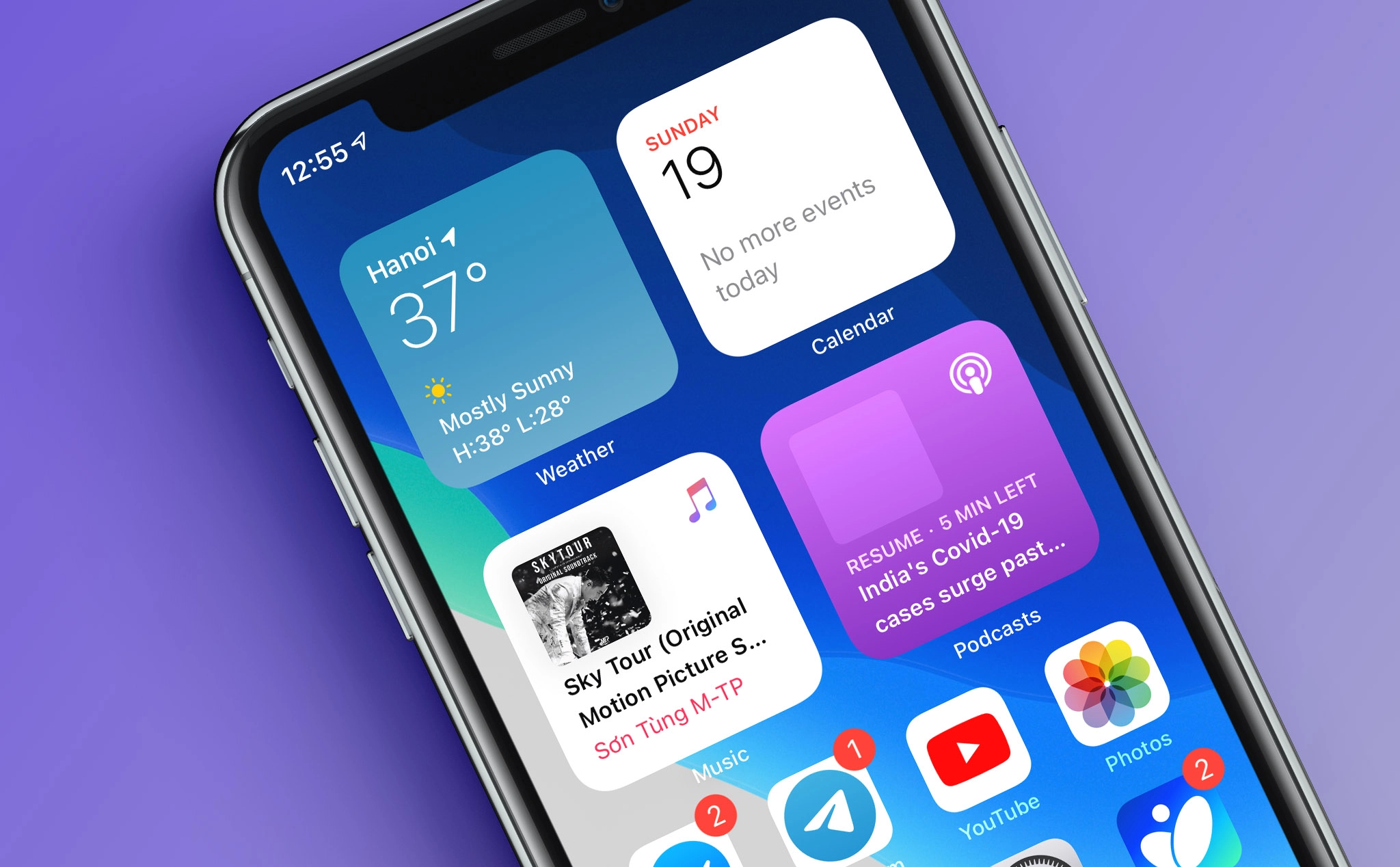
If you are a web developer or designer, there's an exciting trend happening called "mobile widgets." Carsonified is collaborating with Betavine to promote mobile widgets, so we spent four days building a widget to see how easy or difficult it is to develop. The result is Twiggy, a Twitter search widget, and today we will discuss how we built it.
So, what is a mobile widget?
A mobile widget is a simple web application built using open web technologies like HTML, CSS, and JavaScript (we used jQuery). You don’t need to write a single line of Java or any proprietary code, nor do you need to understand "mobile development." The files are packaged into a zip file and downloaded to the phone. The device installs the widget locally, allowing it to communicate with the web. Currently, widgets can run on Nokia S60 phones (with over 1 million in use and growing).
Widgets have access to persistent storage for settings and downloaded data. This mechanism is similar to cookies, but with a larger storage capacity and no automatic expiration after a set period.
Why are they a good idea?
We believe mobile widgets are a great idea because they allow you to reach a large user base beyond just iPhone users. Don’t get us wrong; everyone at Carsonified has an iPhone and we love it, but we’re not “normal.” As web designers and developers, we must consider that many people out there will genuinely benefit from useful widgets running on their phones (they also run on Opera).
Additionally, you can easily adapt mobile widgets for the iPhone with a few simple adjustments. Here’s the version of Twiggy that works on the iPhone.
Cold Hard Cash
To encourage everyone to try building mobile widgets, Betavine is hosting a competition with a prize of £20,000. There are no obligations to Betavine; you retain intellectual property rights to your code, and they promote the widgets to Vodafone customers. This makes for a pretty attractive deal!
As mentioned above, a widget is built using HTML, CSS, and JavaScript and is packaged as a regular zip file, renamed to use the .wgt extension. Here’s what’s included in the zip file:
A Widget Configuration File: This is an XML file located at the root of the widget structure, containing information about your widget, including its size, name, author, and security information.
An Index Document: Similar to a webpage, this document contains the basic framework/content of the widget. The widget's content can be created using any markup that the browser natively handles, such as HTML, SVG, or XML files. This file is also located in the root of the widget structure.
Images: These images are contained in a single image directory.
JavaScript Files: These files are contained in a single scripts directory.
Style Files: These files are contained in a single styles directory.
I’ll hand it over to Elliott Kember, who built Twiggy, to dive into the details of how Twiggy was created and the challenges we faced. Over to you, my friend…
Guide to Creating a Mobile Widget
Thanks, Ryan!
Hello everyone, I’m Elliott, and I built Twiggy. I’ll walk you through a quick guide on how to build a widget.
First, you’ll need a directory. Inside that directory, create an index.html file, a style.css file, a scripts folder, and an images folder. You can structure your files in whatever way feels most comfortable to you. If you want to break down your CSS files by content later, that’s perfectly fine.
Now, in your HTML file, let’s add some content. For our widget, we’re using the following snippet:
<!DOCTYPE HTML PUBLIC "-//W3C//DTD HTML 4.01//EN"
"http://www.w3.org/TR/html4/strict.dtd">
<html>
<head>
<title>Twiggy</title>
<!-- This is for the Opera Widget Emulator. -->
<script type="text/javascript">if(window.parent&&
parent.emulator)parent.emulator.begin(window)</script>
<link rel="stylesheet" href="style.css">
</head>
<body>
</body>
</html>
You can open it in your browser to see what it looks like (it will be empty). Now, grab a copy of jQuery and place it in your "scripts" folder, then add a line like this to your code:
<script type="text/javascript" src="scripts/jquery-1.3.2.min.js"></script>Write all the JavaScript code for your application in a file called actions.js, which should be placed in the /scriptsfolder. Include it like this:
<script type="text/javascript" src="scripts/actions.js"></script>If you want to use any other jQuery plugins, place them in the /scripts folder and include them as usual:
<script type="text/javascript" src="scripts/plugin.jquery.js"></script>Now, add these lines to your code, just in case you want to view the page on your iPhone:
<meta name="viewport" content="initial-scale=1,
maximum-scale=1,minimum-scale=1 user-scalable=no,width = 320" />
<meta name="viewport" content="width=device-width;
initial-scale=1.2; maximum-scale=1.2; user-scalable=0;" />
<meta name="apple-mobile-web-app-capable" content="yes" />
<meta names="apple-mobile-web-app-status-bar-style"
content="black-translucent" />
These lines will inform the iPhone how to display the page, the zoom level to use, and essentially tell it to treat the page as a web application. In your index.html, insert the following divs:
<div id="home" class="panel">
<form id="main-search" class="panel" action="#">
<label for="search">What is your name?</label>
<input id="search" />
<input type="submit" id="bigsubmit" value="Go!"/>
</form>
</div>
<div id="results" class="panel">
<!-- result goes in here -->
</div>
Inside the body, we placed two divs with the class "panel." These represent different pages of our application, and only one will be displayed at a time. When we submit the form on the "home" panel, we want the home panel to hide and the "results" panel to show.
Now, let’s move on to the JavaScript code in actions.js:
var search = function(text){
text = "Hello, "+text+"!";
$('#home').hide();
$('#results').text(text);
$('.panel#results').fadeIn('fast');
return false;
};
$('document').ready(function(){
$('#search').focus();
$('#results').hide();
$('#main-search').submit(function(){
value = $('#search').val();
search(value);
});
});
Great! We have a widget.
Now, let's add some styling:
*{outline: none !important;}
input::-moz-focus-inner { border: 0 !important; }
html, body {
padding: 0;
margin: 0;
}
body {
display: block;
width: 100%;
font-family: verdana;
background: #007FC0;
text-align: center;
color: white;
}
#home.panel {
padding: 20px 0;
display: block;
}
#results.panel {
background: #ff00ff;
}
#search {
margin-top: 10px;
padding: 4px;
border: 1px solid #ff00ff;
font-size: 13px;
}
And we have the initial steps of a widget.
Now, all you need to do is add a config.xml file that looks like this:
<?xml version='1.0' encoding='UTF-8'?>
<widget dockable="yes">
<widgetname>My Awesome Application</widgetname>
<description>It asks you your name, and says hi!</description>
<icon src="icon_64.png" />
<width>240</width>
<height>320</height>
<author>
<name>John Q. Developer</name>
</author>
<id>
<name>My Awesome Application</name>
<revised>2009-04-08</revised>
</id>
</widget>
And you're done! Open it in Opera just to test.
Now, if you want to search Twitter, include the plugin from tweet.seaofclouds.com after your jQuery JavaScript file:
<script type="text/javascript" src="scripts/jquery.tweet.js"></script>While you're at it, change your label to:
<label for="search">What are you looking for?</label>Change your actions.js file to:
var search = function(text){
$('#home').hide();
$('#results').fadeIn('fast');
$("#results").tweet({
query: text,
join_text: "auto",
avatar_size: 32,
count: 10,
loading_text: "loading tweets...",
auto_join_text_reply: '', auto_join_text_default:
"", auto_join_text_ed: "",
auto_join_text_ing: "", auto_join_text_reply:
"", auto_join_text_url: "",
});
return false;
};
$('document').ready(function(){
$('#search').focus();
$('#results').hide();
$('#main-search').submit(function(){
value = $('#search').val();
search(value);
return false;
});
});
And add this to your CSS:
#results { float: left; display: block; width: 100%; }
ul { margin: 0; padding :0; }
li {
list-style-type: none;
text-align: left;
background: white;
color: #333;
line-height: 1.5;
border-top: 1px solid #007FC0;
float: left;
display: block;
padding: 5px 0;
font-size: 12px;
width: 100%;
}
li img {
float: left;
display: block;
margin: 5px 8px 5px 5px ;
}
And you're done! Compress everything in that folder into a file named "search.wgt" (zip -r search.wgt *) and transfer it to your phone via USB cable. When you run it, it will function as a widget.
Download the widget emulator and give it a try. It will look like this:
This is an exciting experiment, as you now have a webpage that will work on almost any device. The iPhone will handle it, it will operate as part of the dashboard, the browser will like it, and it can run as a widget. We tried converting it into a PhoneGap app for the iPhone, but it was unsuccessful.
There’s not too much to watch out for, but you need to be careful with 100% wide layouts to avoid horizontal scrolling.
Here are a few other things to keep in mind:
Auto-focus on input fields wherever reasonable. Nobody likes using that joystick mouse.
Hover effects are crucial. Make buttons clear, as accessing them can be a nightmare.
Ensure your phone has your font and displays it nicely. I've had trouble with italic fonts.
Don't resize images with HTML—this is pretty good advice. Phones do that poorly, and it looks terrible.
Even if you think you're just packaging this for the phone, use CSS sprites—because when you're done, you'll have a web app waiting, and waiting for your button images to load on hover is terrible.
No keypress event handling; this is a shame if you’re making a game. Check instead.
Remember, phones are fast, but not as fast as your computer. And network connections, so be efficient.
Data storage on the phone is done through some JavaScript API calls. You won’t have access to anything fancy, but you can store and retrieve strings using the widget.getPreferenceForKey() and widget.setPreference() methods. To be smart, include the jQuery Cookie plugin and do this:
var get_key = function(key){
if (typeof(widget) != 'undefined'){ // A phone!
return widget.preferenceForKey(key);
}else{ // It's a browser!
return $.cookie(key);
}
}
var set_key = function(value, key){
if (typeof(widget) != 'undefined'){
return widget.setPreferenceForKey(value, key)
}else{
return($.cookie(key, value));
}
}
This way, you can set and retrieve keys without worrying about whether you’re storing them in cookies or on the phone. Happy hunting!
Elliott is a freelance developer living in Bath, and he previously worked for Carsonified. He writes CSS, uses Rails, and is often available. He also enjoys long walks on the beach and candlelit dinners. You can find him at @elliottkember or elliottkember.com.